Newsletters Config: Latest Posts Subscriptions
Newsletters > Configuration > Latest Posts Subscriptions
Latest Posts Subscriptions
This feature sends out latest posts on an predefined interval. However, it only sends an excerpt of the latest post. The posts show featured images defined for posts using the standard WordPress the_post_thumbnail() function.
To change the way the emails of the Latest Posts Subscriptions feature looks, feel free to edit under Newsletters > Configuration > System Emails > Latest Posts. You may make HTML changes and there is a list of shortcodes available to use. All Newsletter plugin and 3rd party shortcodes are fully supported as well.

1. Posts Subscription
This is a list of current latest post subscriptions.
2. Interval
This is the intervals set per latest post subscription. You will be able to set it when adding or editing a latest post subscription.
3. Status
This column will show an active or inactive status for the subscription
4. Lists
This column shows you the lists assigned to the subscription
5. Posts
This column shows you the amount of posts logged for this subscription
6. Action
You will be able to play/pause, view, edit or delete the latest post subscription with this actions.
This is a preview of what the next Latest Posts Subscription email will look like.

7. Add Instance
Click the “Add Instance” button to add a new latest subscription. An overlay will open which will allow you to fill in the following per latest post subscription:
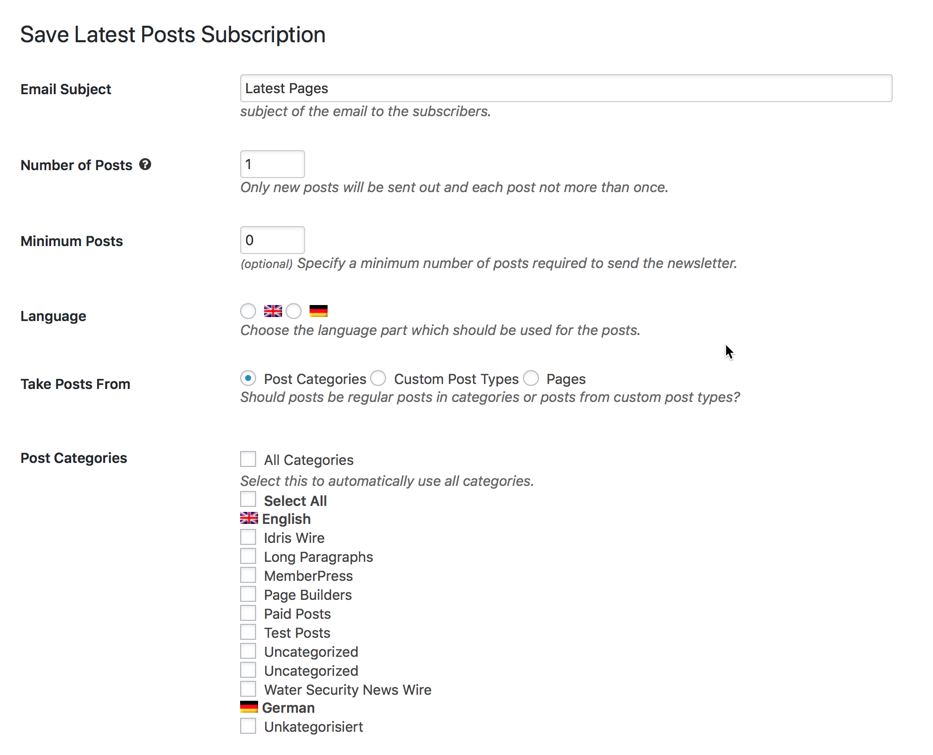
Email Subject
This is the subject of the email to the subscribers. You can fill in an appropriate subject header in the textbox that best suites your needs.
Number of Posts
The default is 10. This is a numeric value of how many post will be used to make up the content of the newsletter. Only new posts will be sent out and each post not more than once. So if a post has been included into a Latest Posts Subscription email once, it won’t be included again since the plugin keeps record of the posts included.
Minimum Posts
Specify a minimum post number. This instance will now only run if the amount of minimum posts are available.
Language
Select a language that you want to use when this feature is active.
Take Posts From
The posts can either be taken from standard WordPress post categories, custom post types or pages, it will display a checkbox list with all the available custom post types so that posts can be taken from these post types accordingly.
Post Categories
The WordPress post categories from which posts will be taken. This works together with the other settings selected for this feature.

Group by Category
If you want to group the posts by category, click this checkbox. It will now show all posts of a category under a heading in the latest post email.
Exclude Post
Obviously because this is all automatic it may pull certain posts that you do not want, so you use the “Exclude Post” option to stop the posts being included. You can do this with comma (,) separated post IDs.
Order Posts
Order posts by ID, Date, Author, Title, Parent, Comment Count, Menu Order in descending or ascending order.
Oldest Post date/Time
Choose the oldest date that posts are allowed to be. Only posts newer than this date specified will be pulled for the Latest Posts Subscription feature.
Mailing List(s)
This is used to separate your subscribers into who receives what content. Subscribers can be part of multiple mailing lists.

Update Schedule interval
Click ‘Yes’ in order to update the start date/time and the interval at which the Latest Posts Subscription feature will run. If you leave this on ‘No’, the current interval and start date/time will be kept intact as it was set before.
Start Date/Time
Specify the starting date/time when the Latest Posts Subscription feature will start sending posts in newsletters to your subscribers for the first time. This could be the current date/time or a future date/time.
Sending Interval
This setting can be used to choose the interval in which latest post subscriptions will be sent out (please note that the first execution will be the time of the interval from the current date/time).
Email Theme
This lets you select a predefined theme when sending out the Latest Posts Subscription emails. The default is the default theme that is set as default under Newsletters > Themes/Templates. All your other themes inside the Newsletters > Themes/Templates section will be available here for choosing.
Website & Email Hosting
Get the best website & email hosting for speed, security, and peace of mind. No restrictions. Freedom to do what you need in order to run your business.