WordPress Shopping Cart plugin
Description
The Tribulant WordPress Shopping Cart plugin gives you, as a webmaster, the ability to quickly and easily transform a WordPress website into an online shop with a beautiful presentation of products and other related elements.
With the easy to use interface, you can set up your multiple products and categorize/organize them into multiple product categories. Add additional images to showcase your products so that users know what they are buying and add digital downloads to products if needed so that users can securely download paid files from your website.
Multiple payment methods, including multiple PayPal methods, Stripe, 2Checkout, Authorize.net, Realex Payments, eMatters, MoneyBookers, First Data (Linkpoint/YourPay), eWAY, Ogone, Bank Wire, Manual/Custom payment method, and many others give your users the ability to choose how they would like to pay and process their payments without any fuss at all. In just a few minutes with a few clicks, your users will be back on your website with a completed order.
System Requirements
- Linux and Apache server (recommended)
- WordPress 3.4 or higher
- PHP 5.4 or higher
- memory_limit 64M (recommended)
- PHP Curl extension
- MySQL 4 or higher
- sql_mode not STRICT
The following is rare and only happens with specific web hosts. If you are using a web host that caches or kills cookies, you need to bypass this restriction or ask your web hosting company to allow cookies. If this isn’t allowed, you will face an issue where products added to cart do not appear on the cart page.
Hosting companies such as “Pantheon” introduced a way to allow cookies by adding a prefix to the cookie names. In order to add a prefix to cookie names, add the following code to your wp-config.php file under the database credentials and it should fix the issue. Please make sure that you are using a version of this plugin that is greater than 1.9.7.
if ( ! defined( 'CO_COOKIE_PREFIX' ) ) {
define('CO_COOKIE_PREFIX', 'STYXKEY');
}
The prefix is STYXKEY, in this case. Your web host might request another one. You can modify STYXKEY to any other prefix.
Installation
- Ensure that you have WordPress installed
- Download the WordPress Shopping Cart plugin from the downloads management section in a ZIP archive (you may need to log in to your Tribulant Software account in order to access your download).
- Either upload it to your WordPress > Plugins > Add New section for a quick installation and skip to step 5 or take the long way and extract the ZIP archive named
wp-checkout.zipin order to be presented with a single folder namedwp-checkout. - Upload the
wp-checkoutfolder to thewp-content/plugins/directory of your WordPress installation. If you are upgrading, overwrite all existing plugin files from an older version. - Access the “Plugins” panel in your WordPress Dashboard once logged in as administrator.
- Activate the “Checkout” plugin if it isn’t already active.
- Access the “Checkout” administration menu item and the submenus to manage the plugin. This can be found on the left hand side of your WordPress Dashboard.
Upgrading the plugin
If you are upgrading the plugin from an older version to a newer version, the steps to follow are the same as the installation steps above. All your settings, products and other data will remain intact and nothing will be lost.
We recommend that you deactivate the plugin before uploading the files and then re-activating the plugin again after you have uploaded the new files to prevent errors on a production site.
VIDEO: Installation Instructions
Usage & Integration
Once the Tribulant WordPress Shopping Cart plugin is set up, it is quite easy to use and maintain. However, some effort and thought needs to go into the way you want your WordPress ecommerce shop to run. It is suggested that you start with pen and paper and jot down what product categories you want, suppliers’ names, styles if they are particular to a product, the products, and so on. A tip is to start working in reverse order, first set up your configuration, then move on to suppliers, categories, styles and finally products.
Tips, Tricks & Guides
Quick Start Guide
Activation
- Go to “Plugins” in your WordPress dashboard.
- Go to Checkout and Click the “Activate” link.
- Once you activate the plugin, you will see a red bar across the top of your admin screen. You will need to generate a serial key and submit it from that red notice in order to be able to use the plugin.
- Should you need to view or delete the current serial key, you can do so by clicking the Serial Key link in the “Checkout” row on the Plugins page of your WordPress installation:
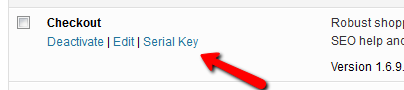
*Please note: that the serial key is very sensitive to the domain it is generated for. The instructions provided when generating the serial key are very descriptive but basically, from your WordPress admin page, the URL shown in the address bar of your browser, you need to select everything after the “http://” and before the next “/”
Example: http://www.example-domain-name.com/subfolder1/subfolder2 for this URL you would only select the www.example-domain-name.com
Any mistakes will be final and you will have to contact us by submitting a ticket to get your key re-issued. Once you have your key you need to copy and paste it to the serial key field and submit it. If your serial key was generated for the wrong domain, this is where you will get an “Invalid Serial Key” message, if it is right, then you can proceed and begin using the plugin.
Configuration
- Go to Checkout > Configuration in the plugin.
- Read carefully through the configurations and select the options that best suit what you want.
- Remember to select default country and default currency.
- There is an easy configuration menu for payment methods on the right side of your screen.
- Be sure to configure the payment method(s) that you are going to use. Each payment method has its own configuration section.
- Watch out for “Thumbnail Dimensions” if you have a product image remember to change the size.
- Be sure to configure both shipping and tax calculation according to your needs. For shipping, you may need to add shipping methods in the Checkout > Shipping Methods section first.
- Click on blue “Save Configuration” at the top of the page.
Create Categories
- Go to Checkout > Shop Categories and click the “Add New” button.
- Enter title such as “Category”.
- Enter description such as “Category description”.
- Click Save Category.
Create Products
- Go to Checkout > Products and click the “Add New” button.
- Enter product title such as “Fresh Milk” enter description below the title such “12litres of boxed fresh milk”.
- Enter products relative details under the required fields.
- Upload a picture of your product in the top right corner of your screen.
- Click the Category you want the product you created to go under.
- Click “Save Product“.
Create a Shop Page
- Go to Pages > Add New in WordPress and enter your desired title, e.g., Shop.
- Enter the shortcode into the content of the page such as
[wpcocategories type="grid"]to display a list of shop categories or[wpcoproducts]to display your latest products with pagination and sorting. See other shortcodes above in the respective documentation. - Click on the “Publish” button to publish the shop page.
Add a Shopping Cart Widget
- If you want products to be added via Ajax, you can go to Checkout > Configuration and set “Add to cart Ajax” to Yes under the “Shopping Cart” configuration section.
- Go to Appearance > Widgets in your WordPress dashboard.
- Drag a “Checkout” widget to your sidebar.
- Choose “Shopping Cart” for the display.
- Click the blue “Save” button to save the widget.
Developers
See the WordPress Shopping Cart plugin Codex for action/filter hooks, functions, code examples and more.
Release Notes
- 1.9.9 - January 2, 2024
- 1.9.8 - October 30, 2023
- 1.9.5 - April 29, 2022
- 1.9.4 - October 21, 2021
- 1.9.3.8 - December 7, 2020
- 1.9.3.18 - June 23, 2021
- 1.9.3.17 - May 30, 2021
- 1.9.3.15 - January 24, 2021
- 1.9.3.13 - December 21, 2020
- 1.9.3 - March 13, 2018
- 1.9.2 - November 29, 2016
- 1.9.1 - June 20, 2016
- 1.9 - June 8, 2016
- 1.8.9.8 - February 15, 2016
- 1.8.9.7 - November 10, 2015
- 1.8.9.6 - November 6, 2015
- 1.8.9.5 - November 3, 2015
- 1.8.9.2 - August 31, 2015
- 1.8.9.1 - August 25, 2015
- 1.8.9 - July 23, 2015
- 1.8.8.1 - March 31, 2015
- 1.8.8 - March 12, 2015
- 1.8.7.6 - December 3, 2014
- 1.8.7.5 - November 18, 2014
- 1.8.7.4 - October 13, 2014
- 1.8.7.3 - October 7, 2014
- 1.8.7.2 - September 9, 2014
- 1.8.7.1 - August 19, 2014
- 1.8.7 - August 5, 2014
- 1.8.6 - August 1, 2014
- 1.8.5.1 - June 27, 2014
- 1.8.5 - June 24, 2014
- 1.8.4.3 - June 9, 2014
- 1.8.4.2 - June 4, 2014
- 1.8.4.1 - June 4, 2014
- 1.8.4 - May 12, 2014
- 1.8.3 - May 4, 2014
- 1.8.2 - April 17, 2014
- 1.8.1 - February 26, 2014
- 1.8 - February 19, 2014
- 1.7 - September 30, 2013
- 1.6.9.2 - December 11, 2012
- 1.6.9.1 - October 11, 2012
- 1.6.9 - September 27, 2012
- 1.6.8 - June 29, 2012
- 1.6.7.1 - May 25, 2012
- 1.6.7 - May 1, 2012
- 1.6.6.6 - March 1, 2012
- 1.6.6.4 - January 9, 2012
- 1.6.6.3 - January 3, 2012
- 1.6.6.2 - December 18, 2011
- 1.6.6 - November 30, 2011
- 1.6.5 - September 16, 2011
- 1.6.1.2 - July 14, 2011
- 1.6 - June 10, 2011
- 1.5.6 - February 25, 2011
- 1.5.5 - December 28, 2010
- 1.5.3 - October 29, 2010
- 1.5 - September 9, 2010
- 1.4.8 - August 3, 2010
- 1.4.7 - July 5, 2010
- 1.4.1 - June 2, 2010
- 1.4 - May 18, 2010
- 1.3 - November 2, 2009
- 1.2.4 - December 26, 2008
- 1.2 - November 28, 2008
- 1.0 - July 30, 2008
Extensions
- (m)qTranslate
- Advanced Coupons
- Affiliates Tracking
- APCO Limited
- Aramex
- Authorize.net CIM
- Barclaycard ePDQ PSPID
- BluePay 2.0 Redirect
- BlueSnap (Plimus)
- Correios
- Dawn Wing
- DPS PX Pay
- Echo Global Shipping
- EU VAT Exemption
- eWAY Rapid API
- FastWay
- First Data API
- First Data e4 HPP
- First Data e4 Web Services API
- GlobalPay
- Guest Checkout
- IntegraPay API
- iPay88
- Loyalty Rewards
- Merchant e-Solutions
- Multiple Currencies
- Netcash Payment Gateway
- Newsletters Subscribers
- Nochex Payment Page
- One Click SSL
- Opayo by Elavon
- Payfast
- PayPal Advanced
- PayPal Express Checkout
- PayPal Pro Hosted
- Piraeus
- Product Reviews
- Sage Payments USA
- SagePay Pay Now Payment Gateway
- SEO
- Stripe
- Suncorp
- Total Web Solutions
- Virtual Card Services
- Wholesale
- WorldNet TPS Hosted
- Zoom Gallery
Beautiful Newsletter Templates
Professional newsletter templates that are fully responsive for desktop, tablet, and mobile. They are 100% cross-client compatible.