Checkout Config: Products Loop/Paging
Checkout > Configuration > Products Loop/Paging
NOTE: The screenshots on this post have been taken from one section in the configuration. It has been split up for convenience and so that it is easier to follow. The settings in the screenshot are explained below the relevant screenshot.
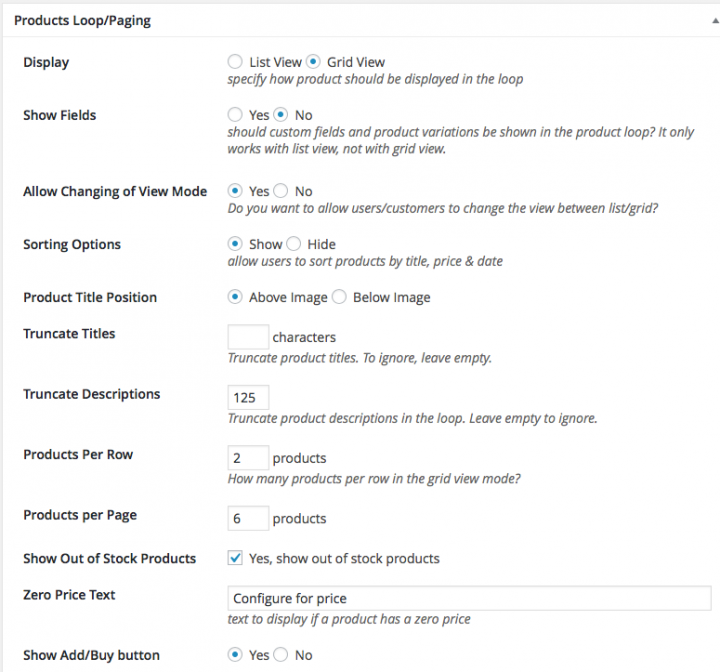
1. Display
This is set to “Grid View” by default. It specifies how products should be displayed in the loop. The grid view is a nice compact structure that fits 3 products per line. The alternative “List View” shows each item as an excerpt (image, shortened description, button and ‘how many’ field). Each item takes up the page width and is displayed one below the other.
2. Show Fields
Set this option to “Yes” if you would like Custom Fields and Product Variations to be shown in the product loop. Please note: It only works with list view, not with grid view.
3. Allow Chancing of View Mode
If this option is set to “Yes” you give the customer the option to switch between List or Grid view when on the product loop. This appears at 2 little icons at the top-right of the loop.
4. Sorting options
If this option is set to “Yes“customers can sort the products by title, price or date. This is displayed with the icons mentioned at option number 3 (changing of view mode)
5. Product Title Position
Select where you want the title of your product to display. Above or Below image
6. Truncate Titles
Truncate product titles allows you to Truncate long titles by X amount of characters . By default this field is empty which is to ignore the setting (long titles will not be truncated). If your product titles cause an uneven product grid due to them being too long, then you may wish to only display the first X character to avoid the wrapping.
7. Truncate Description
Selection this option by entering a character amount in the input field, will cause the product description in the products loop to be truncated to X number of characters. It will also cause any HTML (such as paragraph breaks) to be stripped from the text, and additional product features such as product variations and price tiers to be not displayed in the products loop. Leaving the field empty will have the opposite effect, displaying the full description with paragraphs and other product features including product variations and price tiers.
8. Product Per row
Set the amount of products that you want to display per row.
9. Product Per page
By default this is set to “6“. This determines the amount of products to show per page. If the total number of products exceeds this value then the plugin creates a ‘paging’ option which allows customers to navigate through pages of products.
10. Show out of Stock Products
Show or hide your out of stock products in the products loop
11. Zero Price Text
The default is set as ‘Configure for Price’. This is text that you want to display to users if a product has a zero price.
12. Show Add/Buy Button
The default is “Yes” and displays a buy button with each product. Changing this to “No” removes the Buy button, in which case the customer needs to navigate to the individual product page in order to add the item to their cart.
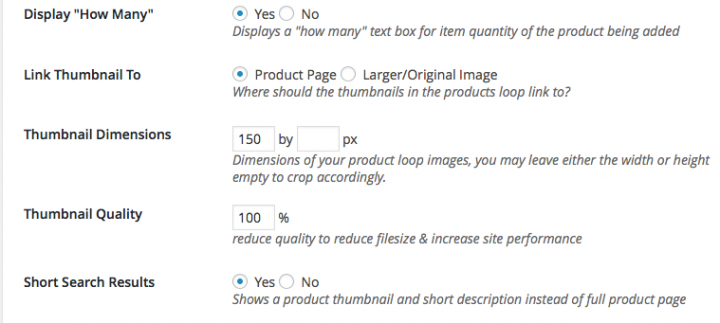
13. Display “How Many”
This is set to “Yes” by default. This option displays a “how many” text box for quantity of the product being added, with the default quantity being 1.
14. Link Thumbnail to
You can choose either to link your thumbnails the product pages or to a larger image. Simply click to appropriate button for your choice.
15. Thumbnail Dimensions
This is set to 125px by 125 px (pixels). Remember that you must upload an image larger than the value set for the dimensions. Smaller images will cause the plugin to generate an error and you will not be able to save the product info.
16. Thumbnail Quality
Here you can decide on the quality of your thumbnails. If you have a lot of thumbnails loading in your product loop it might be a good idea to reduce the thumbnail quality so the page loads quicker.
17. Short Search Results
If this setting is set to “Yes” it will essentially show an ‘excerpt’ of products which are returned in the search results.
Beautiful Newsletter Templates
Professional newsletter templates that are fully responsive for desktop, tablet, and mobile. They are 100% cross-client compatible.